An AI agent is a new kind of “UI” compared to conventional user interfaces, capable of bridging the gap between the user and the underlying APIs and supporting highly customizable solutions tailored to the user’s preferences. It can significantly simplify the interactions with a complex system.
Each MCP (Model Context Protocol) offers a bridge for agents by providing a schema that lets agents explore on their own how to use the provided APIs to achieve certain features.
If you have tried out the UI of 72qr, you might notice there is still a learning curve involved in understanding the UI components when tuning a QR art. In addition, it takes time to handle the manual workflow that includes preprocessing the reference image and waiting for the generations. With MCP, you can now instruct your agent to do the job with simple instructions, significantly reducing the effort and time required to create QR art.
Beyond that, one of the key capabilities which agents can help unlock, and which are hard to achieve in the conventional UI, is control over the QR code pattern itself. There is a technique, introduced by the qart library, to reshuffle the modules in a QR code. It allows the QR code to align with a visual target without compromising its error correction, unlike the conventional overlay approach which sacrifices it.
By default, 72qr’s MCP reshuffles the QR code to align with the central part of the reference image. Alternatively, the client can provide their own reshuffled QR code image to override the default behavior. This enables more creative freedom to design the patterns that the QR art wants to follow.
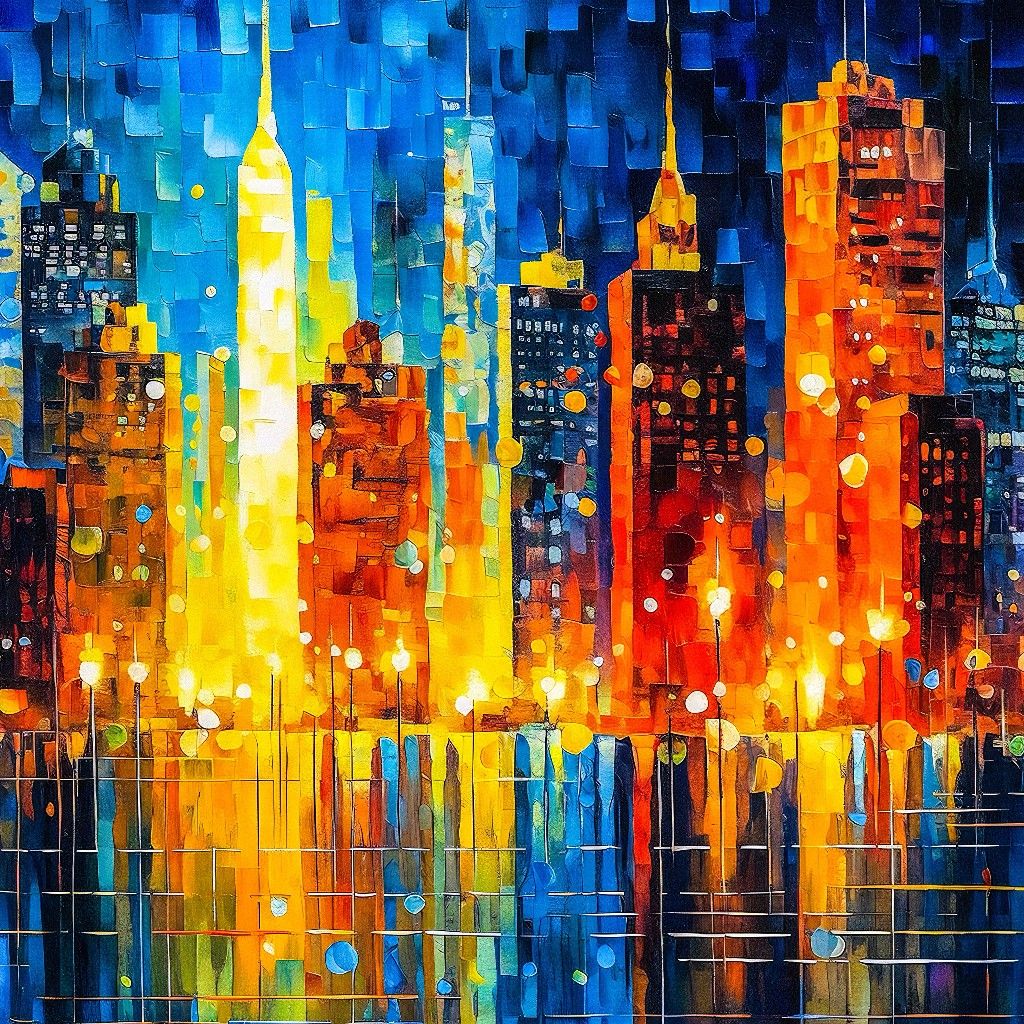
Assuming you can instruct an agent to automate the interaction with the MCP, let’s walk through a full example. Everything starts with a single reference image — the visual target the QR art will be derived from:
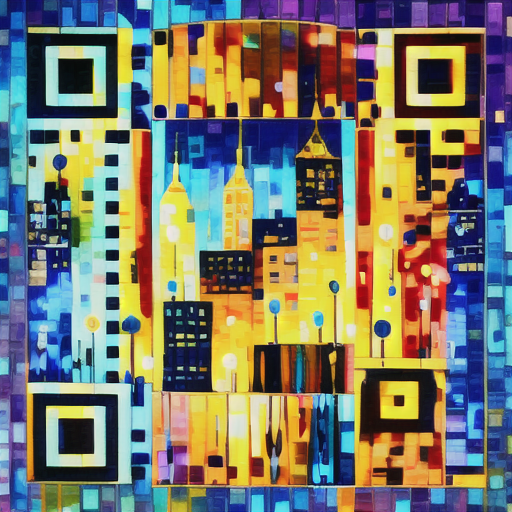
In the default pipeline, the MCP backend encodes the target URL and reshuffles the modules to match the center of this image, producing the QR art below. Notice how the overall composition and style follow the reference, while the QR code remains fully functional:
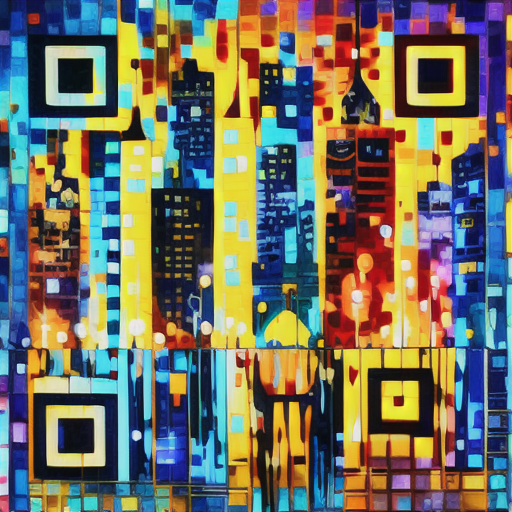
To go one step further, we can design the pattern ourselves instead of relying on the default reshuffle. Here we mix a “72qr” logo into the QR code, based on the same reference image:
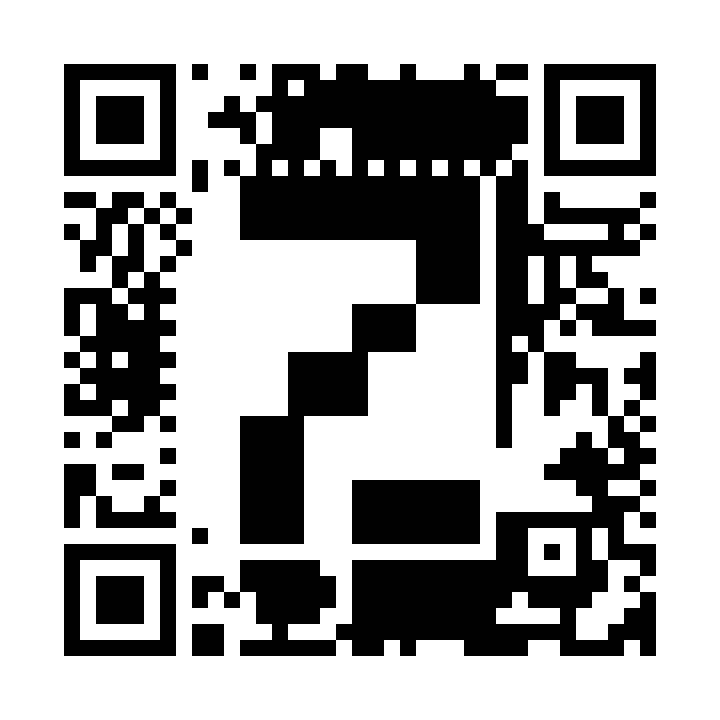
custom reshuffle: a 72 glyph mixed into the QR code with the reference image
Feeding this pattern to the MCP as a custom reshuffled source, the glyph is no longer an overlay — it emerges from the QR art itself, without introducing errors in the QR code:
Finally, for legacy scanners that might struggle with free-form art, the MCP also emits a ring variant that keeps the finder patterns in their conventional form:
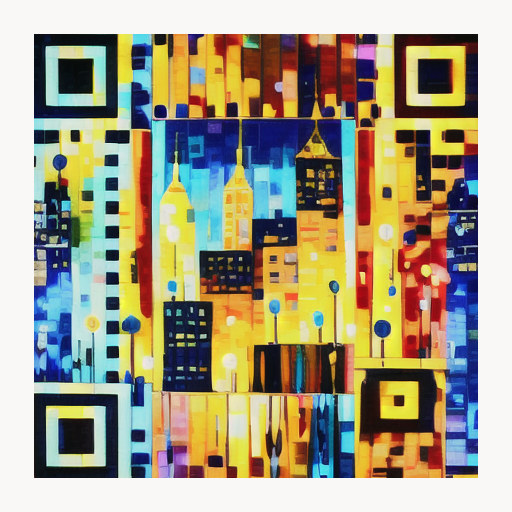
Best of all, you no longer need to do this manually. It used to be tedious to reshuffle a QR code by hand, even if you knew how to program with the qart library. With MCP, it should be easy to design the desired patterns to blend with the styles and scene of a reference image, all with the help of agents.
The MCP server is available at: https://72qr.wuko.ai/mcp
Give it a try. I’d love to hear your suggestions and look forward to enjoying your QR art!
Leave a Reply